How to share your stream time in Discord so it shows in everyone's timezone
You announce your stream for "8 PM," someone in another country does the timezone maths wrong, and they show up an hour late — or miss it entirely. If your audience is spread across regions, or you're coordinating with creators in other countries, this happens constantly. The usual fix is to type out a wall of conversions ("8 PM ET / 5 PM PT / 1 AM GMT / 10 AM AEDT…"), which is tedious, easy to get wrong, and quietly breaks twice a year when daylight saving shifts.
Discord has a built-in feature that solves this properly: timestamps. You give Discord one absolute moment, and it shows every reader that moment in their own local time, automatically.
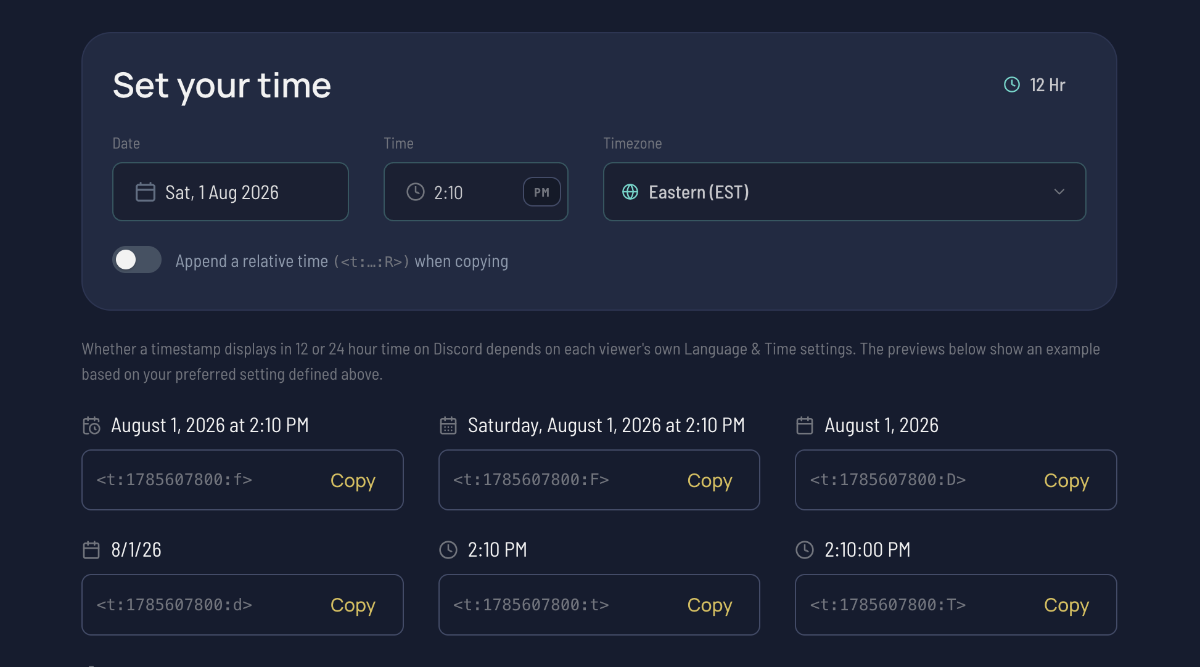
Just want to make one? Use our free Discord timestamp generator — pick a date, time and timezone, and it builds the code for you to copy and paste. No account, no login.
What a Discord timestamp actually is
A Discord timestamp is a small piece of text you paste into a message, like <t:1782843600:F>. Discord replaces it with a formatted date and time — converted to each viewer's own timezone. The person in London sees London time, the person in Tokyo sees Tokyo time, and nobody has to do the maths.
The code has two parts:
- The number (
1782843600) is a Unix timestamp — the exact moment, stored with no timezone attached. That's the trick: because it's an absolute point in time, Discord can safely render it however each reader's client is set. - The letter at the end (
Fabove) picks the display style — date only, time only, full date and time, or a live countdown.
Because the moment is absolute, there's no ambiguity and nothing to update when daylight saving changes. You post it once; it stays correct for everyone, forever.
The formats
The letter at the end chooses how it displays. There are seven styles:
| Code | Example output | Use it for |
|---|---|---|
t | 8:00 PM | A time on its own |
T | 8:00:00 PM | A time with seconds |
d | 06/30/2026 | A short date |
D | June 30, 2026 | A long date |
f | June 30, 2026 8:00 PM | Date and time — the everyday default |
F | Tuesday, June 30, 2026 8:00 PM | Full date and time with the weekday |
R | in 3 hours | A live, self-updating countdown |
That last one, R, is worth calling out — it renders as a relative countdown ("in 3 hours", "in 2 days") that ticks down on its own. It's perfect for building hype before a stream or event; we've written a separate guide on how to make a countdown in Discord.
How to make one
You can generate the Unix number by hand, but there's no reason to:
- Open the Discord timestamp generator.
- Set the date and time of your stream, and pick the timezone that time is in (it defaults to yours).
- Copy the code for the style you want — each one shows a live preview so you can see exactly what your viewers will get.
- Paste it into your Discord message. It'll appear as a formatted local time the moment you send.
It works in normal messages, embeds, pinned posts, and the output of most bots and webhooks — anywhere Discord renders message formatting.
Where this actually helps
Announcing your next stream. Drop a <t:…:F> in your announcements channel and every follower reads it in their own time. Pin it so it stays correct until you go live.
Coordinating with other creators. Planning a collab with people in other countries is where timezone mistakes cause real damage — a streamer prepping for the wrong hour. Share the agreed start as a timestamp and everyone's on the same page. (Finding that time in the first place is its own challenge — see how to find a time to stream with other creators.)
Community events and one-off streams. Charity streams, watch parties, launch premieres — anything with a specific start time benefits. Pair the full date (F) with a countdown (R) so people see both the exact time and how long until it starts.
A couple of things to know
- It only works inside Discord. The
<t:…>code is a Discord feature — paste it on Twitter or in a YouTube description and it'll just show the raw text. For those, convert your time with our stream timezone converter instead. - 12- or 24-hour is the viewer's choice. Whether someone sees "8:00 PM" or "20:00" depends on their own Discord Language & Time settings, not yours. You can't force one — and you wouldn't want to, since the whole point is that each person sees it their way.
- Set the timezone correctly. The code pins an absolute moment, so make sure the generator's timezone matches the zone your entered time is actually in.

Doing this for every stream? There's a faster way
Timestamps are great for a one-off message. But if you stream on a regular schedule — or run recurring events — retyping and re-pinning times for every announcement gets old fast.
That's what StreamDay is built for. Instead of hand-making a code per message, you publish your schedule once and get a single link that always shows each viewer your stream times in their own timezone — updating itself as your schedule changes. Same principle as a Discord timestamp, applied to your whole schedule and kept permanently up to date. If you're coordinating a group stream, it also collects everyone's availability and generates per-timezone announcement graphics automatically.
Post the timestamp for tonight; publish the schedule for everything after that.