The best bitrate for streaming on Twitch, YouTube, and Kick
Bitrate is one of those settings that sounds simple — bigger number = better quality, right? — and then you discover that pushing it too high gets you buffering viewers, dropped frames, and a Twitch warning that your stream "may not transcode properly."
The right bitrate is a balance between three things: what your platform allows, what your upload bandwidth can actually sustain, and what your viewers can play back without buffering. This guide walks through how to pick a setting that respects all three, plus some realistic starting points for the most common resolutions.
Just want the numbers? Use our free streaming bitrate calculator — it measures your actual upload speed and outputs the exact OBS settings (bitrate, encoder, keyframe, audio) for Twitch, YouTube, and Kick.
What bitrate actually is
Bitrate is how much video data per second your stream sends to the platform. Measured in kilobits per second (kbps) or megabits per second (Mbps). Higher bitrate = more data per second = sharper image and smoother motion.
The tradeoffs:
- Higher bitrate uses more of your upload bandwidth. A 6,000 kbps stream needs at least 6 Mbps of upload. If your home internet has 10 Mbps up, you're using 60% of it for the stream alone, leaving little for everything else (game patches, Discord, the rest of your household).
- Higher bitrate makes the platform's transcoding harder. Twitch in particular will refuse to transcode high-bitrate streams to lower qualities for some viewers, which means anyone without a fast connection just sees buffering.
- Higher bitrate doesn't always look better past a certain point. Beyond the threshold where each pixel has enough data, more bitrate gives diminishing returns.
The trick is finding the sweet spot for your resolution and content.
Platform limits you need to know
Each platform caps how much bitrate they'll accept from a stream before degrading quality or dropping the broadcast.
Twitch
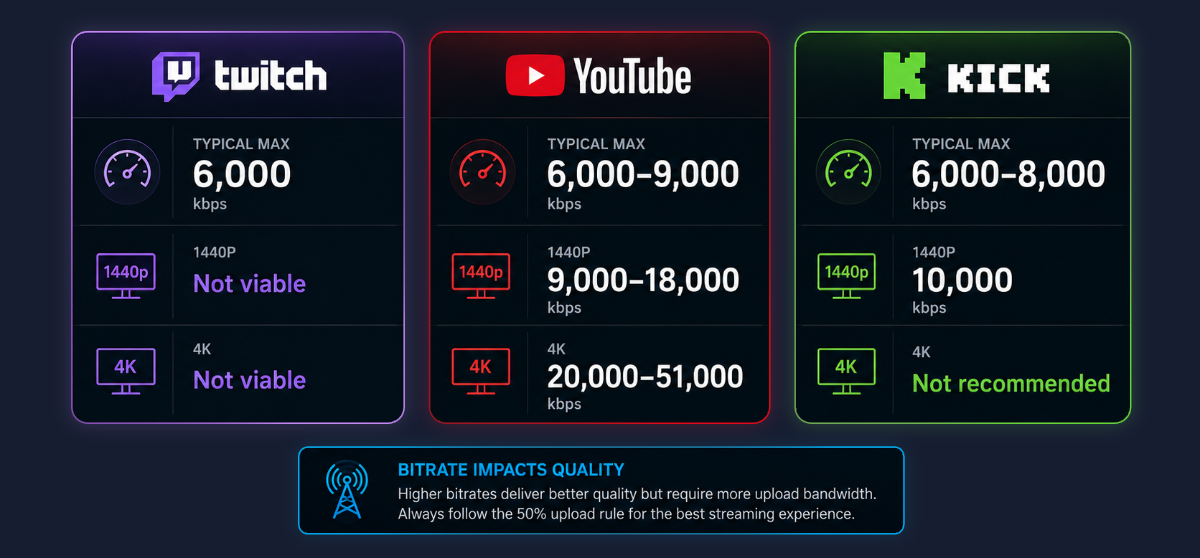
Twitch's recommended ceiling is 6,000 kbps for the standard ingest. Partners and affiliates have a slightly higher cap (around 8,000 kbps), and Twitch is rolling out support for newer encoding (HEVC, AV1) that can push to 10,000+ kbps for select streamers — but treat 6,000 kbps as the realistic maximum unless you've confirmed otherwise for your channel.
Above 6,000 kbps, Twitch is less likely to provide transcoding (the "Source / 1080p / 720p / 480p" quality dropdown viewers see). Without transcoding, anyone whose connection can't handle your full stream will see buffering. The practical advice: don't push above 6,000 kbps unless you've verified your channel reliably transcodes at that bitrate.
YouTube
YouTube is far more permissive. Their published guidance is:
- 1080p60: 4,500–9,000 kbps
- 1080p30: 3,000–6,000 kbps
- 1440p60: 9,000–18,000 kbps
- 4K60: 20,000–51,000 kbps
YouTube transcodes broadly regardless of your input bitrate, so the risk of "viewers can't play back" is much lower. The constraint is mostly your upload bandwidth.
Kick
Kick's ingest is more flexible than Twitch's — they explicitly market this as a differentiator. Bitrates of 8,000–10,000 kbps are accepted without warnings, and the platform handles transcoding for most resolutions. Treat their guidance as a sliding scale: more bitrate if you want it, but the practical sweet spots are similar to YouTube's.
The recommended starting points by resolution
These are good starting points for typical content (gameplay, just-chatting, IRL). Adjust upward for high-motion content (fast FPS games, action footage) and downward for static content (chess streams, art streams).
| Resolution | Twitch | YouTube | Kick |
|---|---|---|---|
| 720p30 | 2,500–4,000 kbps | 3,000 kbps | 3,000–4,000 kbps |
| 720p60 | 3,500–5,000 kbps | 4,500 kbps | 4,500 kbps |
| 1080p30 | 3,500–5,000 kbps | 4,500 kbps | 4,500 kbps |
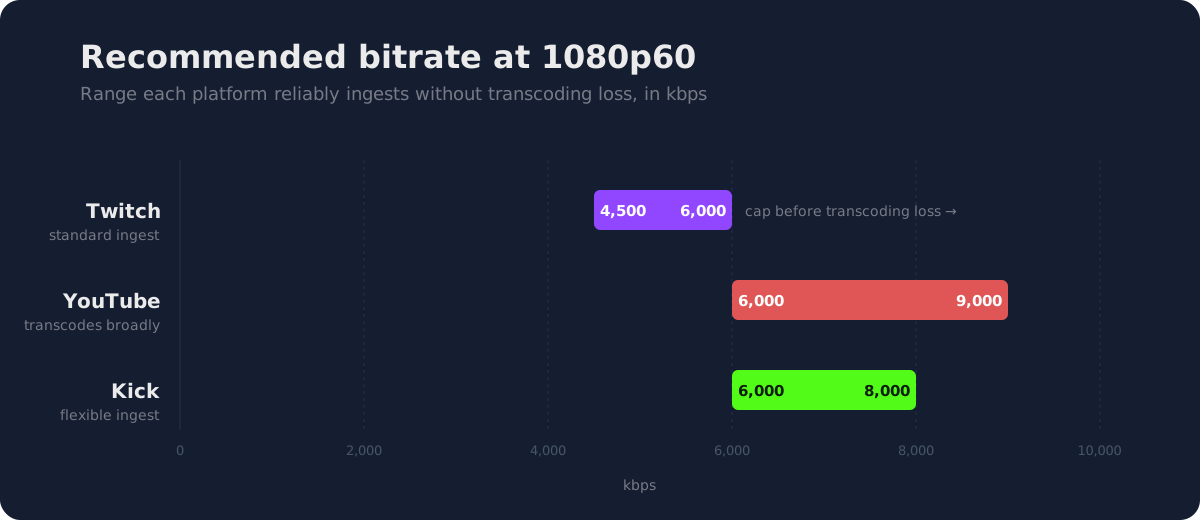
| 1080p60 | 4,500–6,000 kbps | 6,000–9,000 kbps | 6,000–8,000 kbps |
| 1440p60 | not viable | 9,000–13,500 kbps | 10,000 kbps |
| 4K60 | not viable | 25,000–35,000 kbps | not recommended |
The "Twitch" column maxes out at 1080p60 because pushing above 6,000 kbps gets you into transcoding-loss territory for most channels.
The 50% upload rule
A simple rule that prevents most "dropped frames" disasters: don't use more than 50% of your upload bandwidth for your stream.
If your upload speed is 10 Mbps, cap your stream at 5,000 kbps. If you have 25 Mbps up (fibre tier), 12,500 kbps is your ceiling.
The reason for the 50% margin: real-world internet bandwidth fluctuates. Speed test peaks aren't sustained throughput. Other devices in your household will use some of the connection — even a single Netflix stream eats 5–7 Mbps. A game patch downloading in the background can briefly saturate everything.
Going above 50% means any of these incidental loads will cause dropped frames on your stream, which shows up as visible glitches for your viewers.
Test your actual sustained upload, not the marketed speed. Run a speed test multiple times across different times of day. Use the lowest sustained number as your baseline.
Audio bitrate
Audio is almost always the wrong place to economise. Audio bitrate is small compared to video — 160 kbps stereo (the standard) is roughly 2.5% of a 6,000 kbps video stream.
Recommendations:
- 160 kbps stereo for the vast majority of streams. This is the platform standard and it sounds good.
- 128 kbps mono only if you're streaming a static-audio scenario (chess on a chessboard, no music, no game audio) and want to save the bandwidth.
- 320 kbps stereo if you're streaming music or any audio-first content where the listener will notice compression artefacts.
OBS's default is usually fine — see our OBS setup guide for where the audio bitrate setting lives in the encoder panel. Don't overthink this.
Keyframe interval
Set your keyframe interval to 2 seconds. Every streaming platform expects this. Anything else and you risk encoding errors, buffering at scene changes, and platform warnings.
In OBS: Settings → Output → Streaming → Keyframe Interval = 2. (If you haven't installed OBS yet, our beginner's setup guide walks through every panel from install to first broadcast.)
This is one of those settings that's "set once and forget." There's no reason to deviate from 2 seconds for any normal stream.
Encoder choice (x264 vs NVENC vs AMF)
Your encoder matters more than your bitrate, in some ways. A modern hardware encoder at 4,500 kbps often looks better than software x264 at 6,000 kbps.
The choices:
- x264 (software). Uses your CPU. Best quality per bit but expensive on CPU usage. Use the "veryfast" preset as a starting point. "fast" or "medium" if you have a powerful CPU and want better quality.
- NVENC (NVIDIA hardware). Uses your GPU's dedicated encoding hardware. Free on CPU. Pre-RTX-20-series cards were noticeably worse than x264 at the same bitrate; RTX-20-series and newer are competitive, RTX-40-series and AV1-capable cards are better. Use this if you have an RTX card.
- AMF (AMD hardware). Same idea as NVENC but on AMD GPUs. Historically weaker than NVENC; the RDNA 3 generation (RX 7000 series) is much better.
- Quick Sync (Intel hardware). On Intel CPUs with integrated graphics. Decent on recent generations. Less popular for streaming but viable as a backup.
The decision tree:
- RTX 20-series or newer GPU? Use NVENC.
- Intel Arc GPU? AV1 encoding via Arc is excellent.
- AMD RX 7000 series? AMF is acceptable.
- Older hardware on either side? x264 with "veryfast" preset, if your CPU can handle it.
The newer the encoder generation, the closer hardware encoders get to (or exceed) x264 quality at the same bitrate.
How to test your settings
Don't guess — actually verify the stream looks how you think it does.
Three tools:
Twitch Inspector. Free tool at inspector.twitch.tv. You start a test stream (use your stream key) and it reports bitrate consistency, dropped frames, and encoder warnings in real time. The single most useful tool for diagnosing "why are my viewers complaining about buffering."
OBS preview mode. Set OBS to record locally at the same encoder settings you'd stream with, then play back the recording. If the recording looks pixelated or stutters, your settings are wrong before you even hit Twitch.
Watch your own stream in a browser. Either from a phone on cellular or from a friend's computer. Anything you wouldn't watch yourself for an hour is wrong for your viewers.
Quick-reference settings I'd actually use
If you don't want to think about it and just want defaults that work for ~80% of streamers:
- Resolution: 1920×1080
- Frame rate: 60 fps for games with motion, 30 fps for IRL/just-chatting
- Encoder: NVENC (if RTX 20-series or newer), otherwise x264 "veryfast"
- Bitrate: 5,000 kbps for Twitch, 6,000 kbps for YouTube, 5,500 kbps for Kick
- Keyframe interval: 2 seconds
- Audio: 160 kbps stereo at 48 kHz sample rate
Set these once, run a 30-minute test stream while watching Twitch Inspector, adjust if anything's flagged.
What about multistreaming?
If you're broadcasting to more than one platform at the same time (Twitch + YouTube simultaneously), your upload bandwidth has to support both streams' combined bitrates. Two simultaneous 6,000 kbps streams = 12,000 kbps = 12 Mbps sustained upload required. Half-rule means you need a 24 Mbps line.
Most multistreamers use a service like Restream or Aitum to send one stream to a cloud relay, which then forwards to each platform. That keeps your upload requirement at one stream's bitrate, not the sum. The tradeoff is added latency and a subscription cost.
Bringing this back to your audience
The technical bit is one half of the equation. The other half: viewers actually finding your streams. A well-encoded 1080p60 stream that nobody knows is happening doesn't matter.
That's where a unified, published schedule helps. We built StreamDay for exactly this — one URL that shows your full streaming schedule across Twitch, YouTube, and Kick, regardless of which platform any given stream is on. See an example on our stream schedule demo.
If you're already getting the encoding right, the next step is making sure your audience knows when to show up. The bitrate guide above is most of what you need for the production side; a published schedule covers the distribution side.
In summary
- Find your sustained upload bandwidth and don't use more than 50% of it
- Match your bitrate to your resolution and frame rate using the table above
- Use a hardware encoder if you have one (RTX 20-series or newer is best)
- Set keyframe interval to 2 seconds, audio to 160 kbps stereo
- Test with Twitch Inspector before relying on settings
Get these right and your stream will look good, sound good, and play back reliably for viewers regardless of their connection. Everything else — overlays, alerts, scenes — sits on top of a solid encoding foundation.