How to stream from OBS: a beginner's setup guide
OBS Studio (Open Broadcaster Software) is the default broadcasting tool for most streamers. It's free, open-source, runs on Windows, macOS, and Linux, and is the bedrock under most streaming workflows whether the streamer realises it or not. Streamlabs is built on top of it. SLOBS uses its codebase. Even XSplit users tend to know what OBS is.
If you're starting from scratch, OBS is what you should learn. This guide walks through getting from "haven't installed it yet" to "live on Twitch/YouTube/Kick," with the realistic gotchas that catch first-timers.
Step 1: Install OBS
Download from obsproject.com. Don't install OBS from a third-party site — the official builds are signed and free; mirrors are sometimes bundled with crapware.
On Windows, the installer is straightforward. On macOS, you'll need to allow OBS to capture your screen and microphone in System Settings → Privacy & Security. On Linux, the official Flatpak from Flathub is the easiest path.
After install, launch OBS. The first-launch experience usually pops up the Auto-Configuration Wizard. Run it.
Step 2: Run the Auto-Configuration Wizard
The wizard asks two questions:
- What's your primary use case? Pick "Optimise for streaming, recording is secondary."
- What's your target platform? Twitch, YouTube, or "Custom Server" for Kick / other services.
Then it runs a bandwidth test (uploads a brief test stream to detect your sustained upload speed) and recommends settings based on that.
The wizard's recommendations are usually fine as a starting point. You can refine later. Trust the bandwidth detection — the wizard is conservative on purpose to avoid the dropped-frames-on-first-stream disaster.
If the wizard didn't run automatically, find it under Tools → Auto-Configuration Wizard in the menu bar.
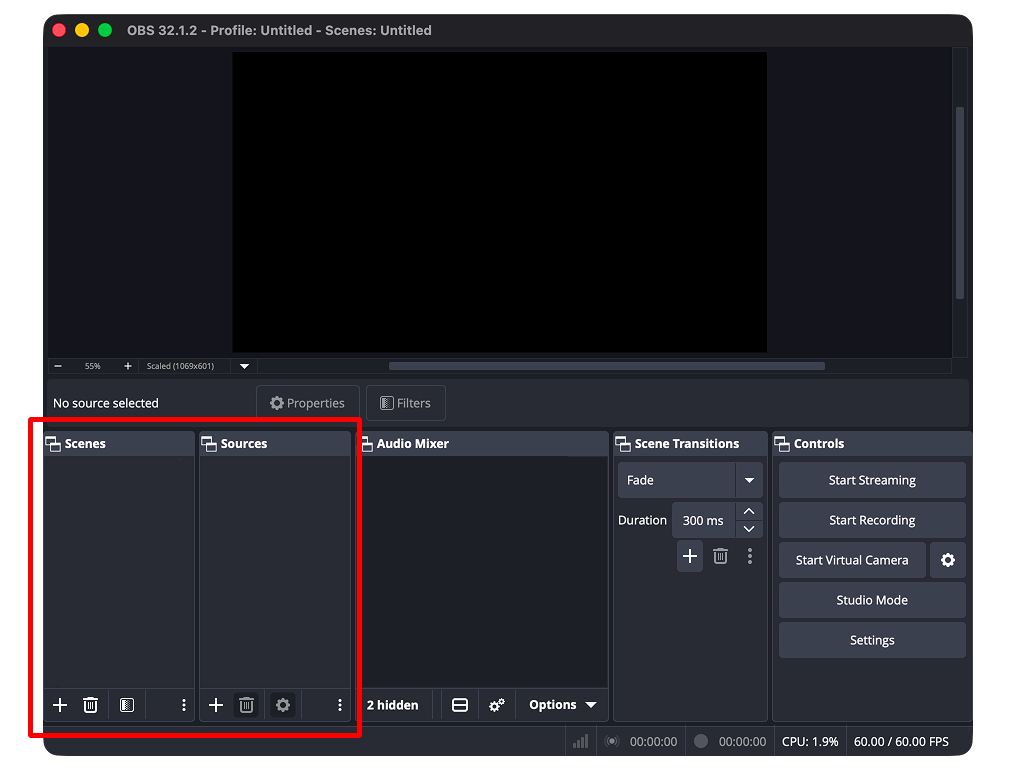
Step 3: Understand scenes and sources
The two concepts that make OBS make sense:
A scene is a collection of visual + audio elements that compose one "view." You can have multiple scenes and switch between them: a "Just Chatting" scene with you full-screen on your webcam, a "Gaming" scene with the game capture full-screen and your webcam in the corner, an "Intro" scene with a graphic and music, etc.
A source is an individual element inside a scene. A webcam, a microphone, a game capture, a static image, a browser source for stream alerts, etc. Sources are added to scenes; the same source can appear in multiple scenes.
The mental model: scenes are pages, sources are widgets on the pages.
For your first stream you'll probably have one scene with three sources: a screen/game capture, a webcam, and a microphone.
Step 4: Add your first sources
In the Sources panel at the bottom, click the + button.
Display capture or game capture
If you're streaming gameplay, "Game Capture" is more efficient than "Display Capture" — it captures only the game window's pixels, which is lighter on the GPU.
If you're streaming non-game content (Just Chatting, art streams, software demos), "Display Capture" grabs the whole screen.
On macOS, you'll need to give OBS Screen Recording permission in System Settings → Privacy & Security → Screen Recording. After granting permission, restart OBS.
A common gotcha: on Windows with a multi-GPU laptop, Display Capture sometimes shows a black screen because OBS is running on the wrong GPU. Right-click OBS → Run on the same GPU as the game. Or in Windows graphics settings, force OBS to use the dedicated GPU.
Webcam (Video Capture Device)
Add → Video Capture Device → select your webcam from the dropdown. Resize and position the preview to where you want it on the screen (most streamers put it bottom-left or bottom-right corner).
If your camera doesn't appear, OBS doesn't have permission. On Windows: Settings → Privacy → Camera → allow desktop apps. On macOS: System Settings → Privacy → Camera → toggle OBS on.
Microphone (Audio Input Capture)
Add → Audio Input Capture → pick your microphone from the device dropdown.
Set the gain. Speak normally at your usual streaming volume and watch the audio meter in OBS. The green portion of the meter should sit around -20dB to -10dB during normal speech, with peaks around -6dB. If it's pinning at 0dB (red), turn the gain down (right-click the source → Properties → adjust the device's level, or use the audio mixer's sliders).
Add a noise gate. Right-click the audio source → Filters → + → Noise Gate. Default settings are usually fine. This stops your mic from picking up background noise (keyboard, fan) when you're not actively talking.
Consider a noise suppressor too. Filters → + → Noise Suppression. The RNNoise method works well for most setups and removes the constant low-level hum your mic picks up.
Step 5: Audio routing — the bit everyone gets wrong
OBS's audio routing is the most confusing part of the first-time setup. The thing to understand: by default, OBS captures desktop audio (everything playing through your speakers) and microphone audio as separate tracks. Both go to your stream.
That sounds simple. The catches:
If your game audio plays through your headphones, OBS still needs to capture it. On Windows, OBS captures the system audio output device by default — set this in Settings → Audio → Desktop Audio. Pick the device your game audio actually goes to (usually your default playback device).
On macOS, OBS can't natively capture desktop audio. You need a virtual audio device like BlackHole (free, open-source) or Loopback (paid, more polished). Install one, set it as your system output, then point OBS to capture from it. Apple's audio architecture doesn't expose system audio to apps by default.
Discord voice chat is its own problem. If you want Discord voice on your stream, set Discord's output to a separate audio device and capture that device in OBS as a second audio source. Alternatively, route Discord through Voicemeeter (Windows) or Loopback (macOS) to create a separate mixed bus.
The first stream is the right time to verify all of this — open Twitch on a phone after going live and listen to what your viewers will hear. Game audio missing? Discord coming through? Adjust.
Step 6: Stream settings — connect to your platform
In Settings → Stream:
- Service: Twitch, YouTube, or Custom (for Kick).
- Server: Auto for Twitch usually works. For YouTube and Kick, use the recommended ingest.
- Stream Key: Get this from your platform's creator dashboard.
For Twitch: dashboard.twitch.tv → Settings → Stream → Primary Stream Key. Copy and paste into OBS. Don't share this key with anyone — it's effectively a password for going live as you.
For YouTube: studio.youtube.com → Create → Go Live → Stream tab → "Stream Key (paste in encoder)." Same deal — don't share it.
For Kick: kick.com/dashboard → Settings → Stream Key. Use the RTMP URL and stream key together with OBS's "Custom" service.
You can use OBS's "Connect Account" button on Twitch and YouTube to auth via OAuth instead of stream key — slightly easier but functionally equivalent.
Step 7: Output settings
In Settings → Output → Output Mode: Advanced (recommended over Simple — more control, not actually harder):
Encoder.
- NVENC if you have an RTX 20-series or newer NVIDIA GPU
- AMF if you have an RX 7000-series or newer AMD GPU
- x264 if you're on older hardware or no dedicated GPU
Rate Control: CBR (Constant Bitrate). Most platforms expect this.
Bitrate: 4,500–6,000 kbps for Twitch at 1080p60. Use our streaming bitrate calculator to get the exact value for your setup, or read the bitrate guide for the underlying recommendations.
Keyframe Interval: 2 seconds. Every platform expects this.
Preset: "Quality" for NVENC, "veryfast" for x264 (faster preset = lower CPU use but slightly worse quality per bitrate).
Profile: "high" for x264, leave default for hardware encoders.
Step 8: Video settings
In Settings → Video:
- Base Resolution: Your monitor resolution (1920×1080 for most setups)
- Output Resolution: Same as base, or downscale to 1280×720 if your bitrate / hardware can't support 1080p smoothly
- FPS: 60 for fast-motion games, 30 for IRL / just-chatting
If you're not sure, start with 1920×1080 at 60 fps and reduce if you see dropped frames during a test stream.
Step 9: Hotkeys
In Settings → Hotkeys: set keyboard shortcuts for at least:
- Start Streaming / Stop Streaming
- Mute / Unmute Microphone
- Scene Switching (one hotkey per scene)
The mute hotkey is the one you'll use most. Pick something that's not used by your game.
Step 10: Go live
Click Start Streaming in the bottom-right.
Three things to verify in the first 60 seconds:
- Check Twitch / YouTube / Kick on a separate device (phone, second computer). Confirm the stream is live and shows the content you expect.
- Listen to the audio on the second device. Game audio present? Voice clear? No background noise?
- Check OBS's "Streaming Status" in the bottom-right. Dropped frames should be 0 or very close. If you're dropping frames consistently, lower your bitrate or output resolution.
The first-stream gotchas
Things that catch almost every first-time streamer:
Black screen on game capture. Solution: switch the game from fullscreen exclusive to borderless windowed mode. Or use Display Capture instead of Game Capture.
No audio on stream. Wrong device selected in Settings → Audio. Or the source is muted in OBS's audio mixer (the speaker icon is greyed out — click to unmute).
Stream is laggy / dropping frames. Bitrate too high for your connection (see the bitrate guide), or the encoder preset is too aggressive for your CPU/GPU.
Audio out of sync with video. Right-click the audio source → Properties → Sync Offset. Adjust by ±50 ms increments and re-test.
Stream alerts (Streamlabs/StreamElements) don't show up. Add the alert overlay URL as a Browser Source in OBS, not a separate window. Set the source dimensions to 1920×1080 (the canvas size, not the visible alert area).
Webcam shows mirrored. Right-click the webcam source → Transform → Flip Horizontal. Or right-click → Apply Filter → "Apply LUT" if your camera needs colour correction.
What to set up after your first stream
Once you've got a baseline working:
- Multiple scenes. Intro scene, main streaming scene, "Be right back" scene. Hotkey-switch between them.
- Stream alerts. Set up Streamlabs or StreamElements for follow/subscribe alerts. Browser Source in OBS, URL provided by the alert service.
- Scene transitions. Default cut transitions are fine; "Stinger" transitions (short video clips between scenes) look more polished.
- A "Starting Soon" scene with a countdown timer, played for 5–10 minutes before your stream actually starts. Helps viewers know they're early and the stream hasn't crashed.
These are all incremental polish; the basics above are what you need to actually go live.
After the stream: where viewers find you next time
The hardest part of streaming isn't going live — it's getting people to know when you'll be live next. OBS is the production side; that's solved. The other side is the schedule.
Most streamers maintain their schedule in three places (Twitch panel, Discord pin, Twitter bio) and forget to update one of them. We built StreamDay to solve that — one URL that shows your scheduled streams across Twitch, YouTube, and Kick, automatically synced. If you stream on multiple platforms or want one link to share that always has your current schedule, see the stream schedule demo.
In summary
- Install OBS from the official site
- Run the Auto-Configuration Wizard to get sane defaults
- One scene, three sources for your first stream: display/game capture, webcam, microphone
- Verify audio routing carefully — this is where most first streams go wrong
- Get your stream key from the platform and paste into Settings → Stream
- Set bitrate to 4,500–6,000 kbps at 1080p60 for Twitch, see the bitrate guide for other setups
- Go live and check the result from a second device
That's the whole first-stream loop. Everything else — multiple scenes, alerts, custom overlays — is iteration on top of this baseline.