Your other channels, Discord, and links — now on your stream schedule page
If someone lands on your StreamDay schedule page, they're already interested. They've followed a link from your Twitch panel, your YouTube banner, a Discord pin, or a friend who said "go check out this streamer's schedule." That's the moment they're most likely to follow you elsewhere, and until today, there was nowhere on the page for them to do it.
That's now fixed. Every published schedule has a More from me section underneath the calendar, where you can drop in any links your audience should know about — your other channels, your Discord, your podcast, your merch, your community SMP, your Patreon — anything.
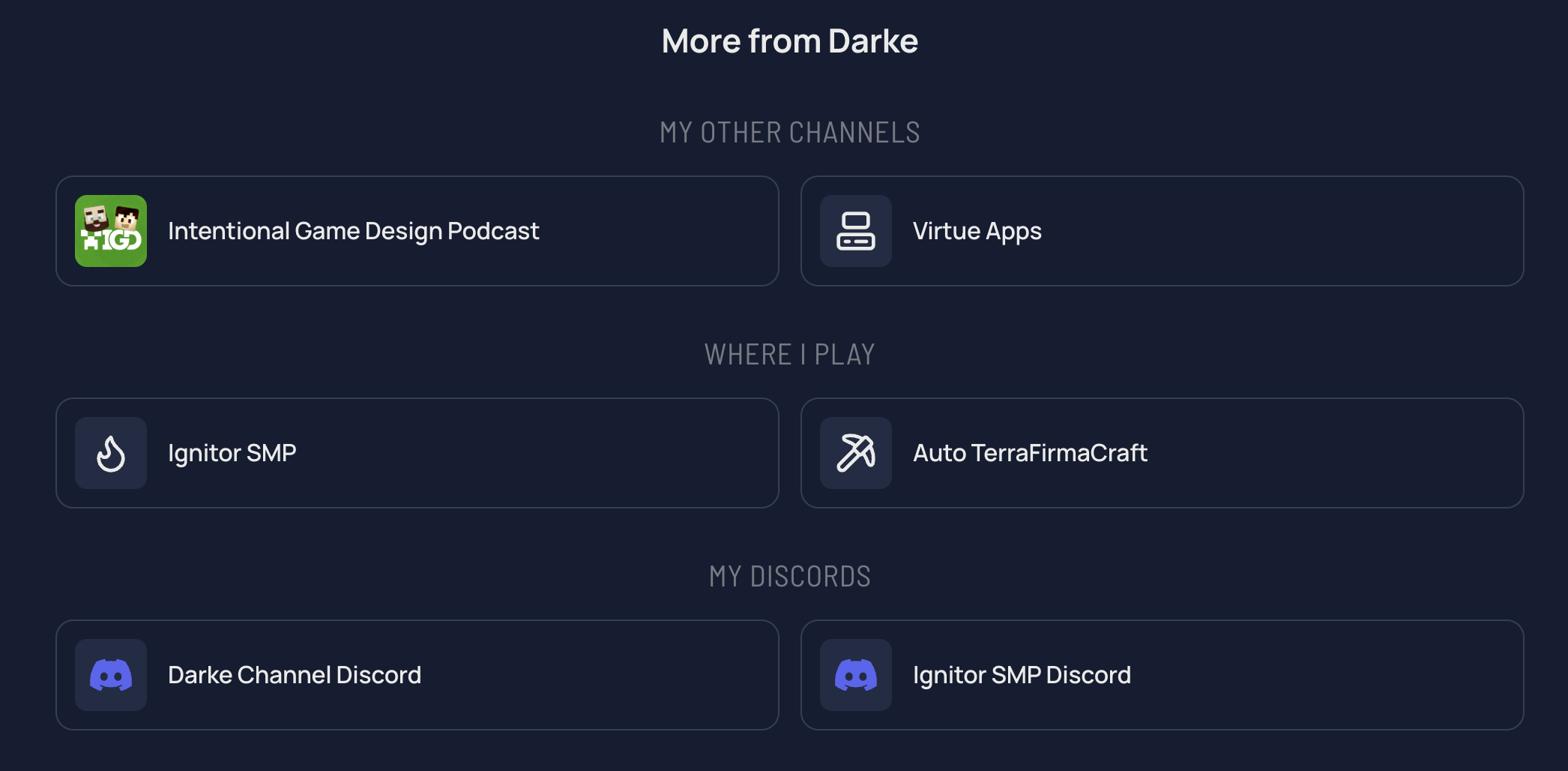
What it looks like
The schedule page already has your name, avatar, channel badges, and the calendar itself. The new link section sits below the calendar, with optional grouping so you can organise links however makes sense for you:
- Other channels — your YouTube, your second Twitch, your podcast feed
- Where I play — the SMP server, the community Discord, the guild page
- Where to support me — Patreon, Ko-fi, merch, affiliate code
Sections are optional. If you only have three links and no need to group them, you can leave the section title blank and they render as a single row.
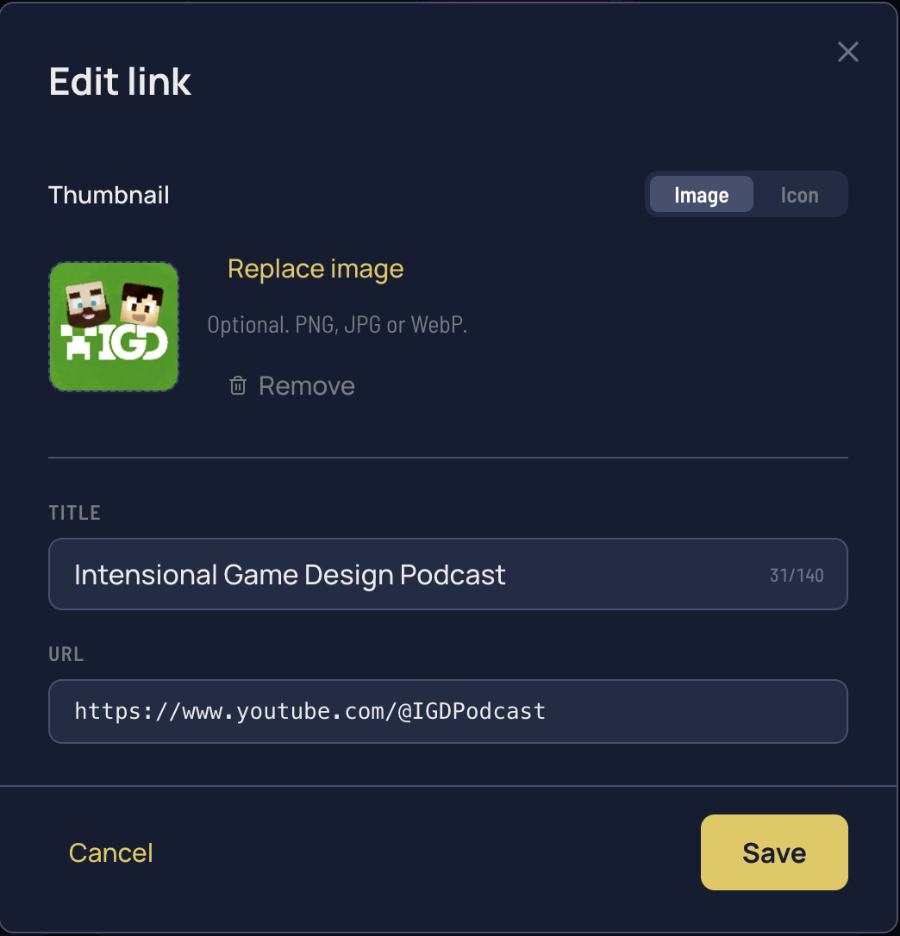
Each link has a title, a URL, and a small visual — either an uploaded thumbnail image (resized client-side, max 256 KB) or a picked icon from Lucide's general-purpose set (1,400+ icons) or a curated list of platform brands (YouTube, Twitch, Kick, Discord, Patreon, Ko-fi, Steam, Spotify, and ~100 more). Brand icons render in their official colour so the YouTube link looks YouTube-red and the Discord link looks Discord-blue.
You don't need to ship a custom thumbnail for every link. For most platform links, the icon picker covers it in two clicks.
Check out a live demo of the feature here
How to set it up
On your /schedule page, scroll past the calendar — the editor is right there. Click Add link to start. A modal opens for the title and URL; pick Image or Icon for the thumbnail. Save.
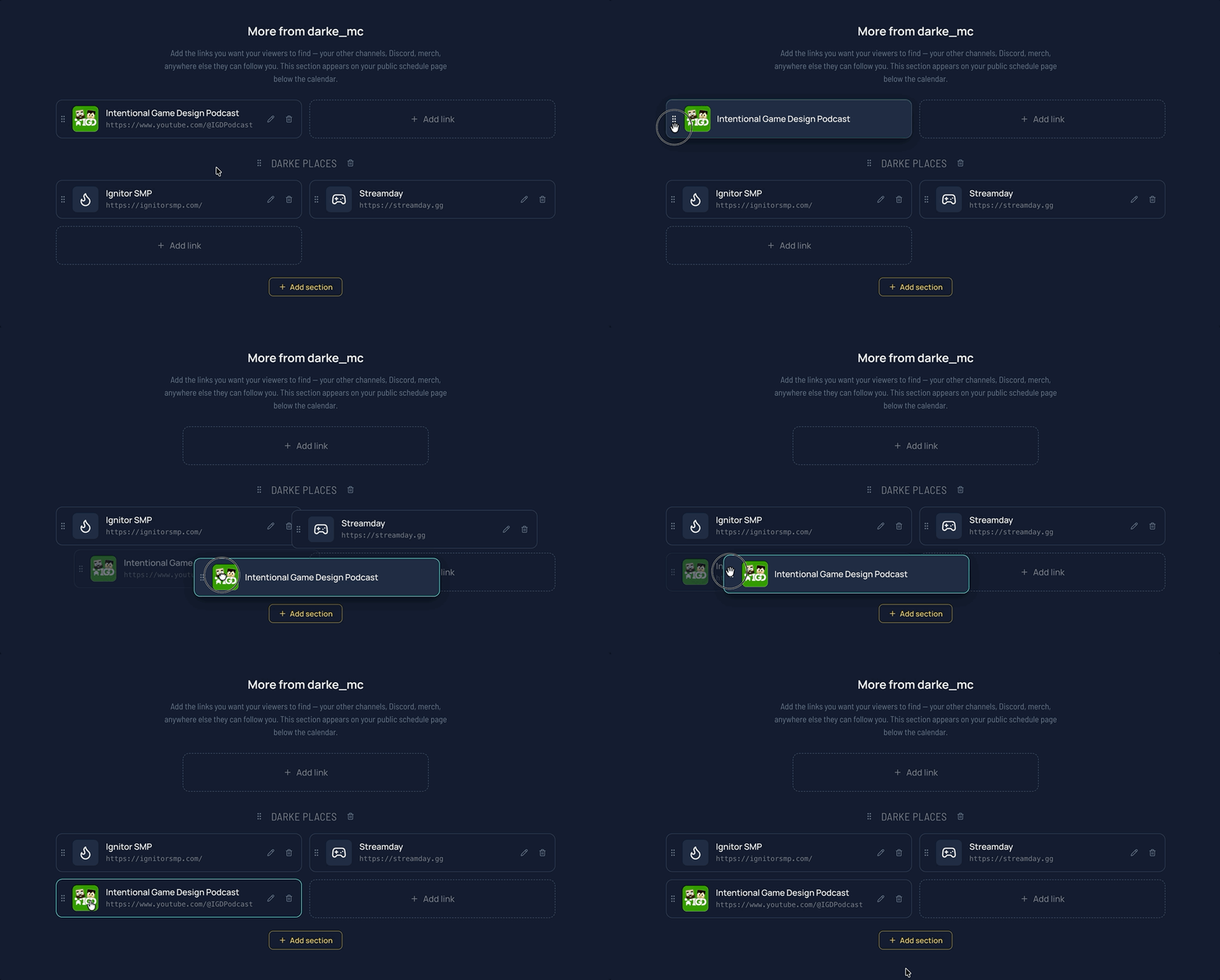
Want sections? Click Add section, give it a name (or leave it blank), and add links inside. Drag links between sections to move them. Drag sections themselves up and down to reorder.
If you delete a section that contains links, the links roll up into the section above instead of being destroyed — same idea as how most note-taking tools handle folder deletion. You'd have to actively delete each link to lose it.
Drag-and-drop, the way it should work
We spent a fair amount of time on the reordering. Cards shift in real time to show where you're about to drop — within a section, between sections, into an empty section. The "Add link" tile at the end of each section is itself a drop target, so dragging a card to the very end of a section is a single intentional move, not a fight with the layout.
It works the same way on touch devices: long-press a card to start dragging, drop anywhere.
Why this lives on the schedule page
We thought about adding a separate Linktree-style page. We decided not to.
The schedule page is the surface your audience already has a reason to visit. They check it to see when you're live next. If we put your other links somewhere else, you'd have to send people to a different URL to get them — which is exactly the fragmentation problem StreamDay exists to solve. One URL, two jobs: "when are you live next" and "where else can I follow you."
One URL, two jobs: "when are you live next" and "where else can I follow you."
It also means the link list inherits the same audience-targeting work you've already done. The viewers seeing your link list are viewers who came to your schedule page on purpose. They're not casual scrollers. Those are exactly the conversions worth optimising for.
See it live
We've added a sample link collection to our stream schedule demo so you can see how it renders before setting up your own. Scroll past the calendar; the "More from Cloverfield" section is the new bit.
Set up your own
If you're already on StreamDay, head to your schedule editor and start adding links underneath the calendar. The section accepts as many sections and links as you need.
If you haven't signed up yet, grab an account — it's free until you publish, and the link collection counts as part of your published schedule. Set up a couple of sections, drop in your channels and your Discord, and you've got a meaningfully more useful public page than what we shipped two weeks ago.
As always, if anything misbehaves or you'd like something we haven't built yet, drop us a line — we read every message and the early-beta period is exactly when we can move quickly on what you ask for.