Publishing a unified Twitch and YouTube stream schedule
If you stream on more than one platform, you're maintaining the same schedule in three places. The Twitch schedule panel. The YouTube community tab. A pinned message in your Discord. Maybe a Linktree page that lists your "Schedule" link and goes to one of the above.
Every time you change a stream time, you have to update all of them. Half the time, you forget one. Viewers checking the wrong source see the wrong information. And anyone who follows you on more than one platform gets a fragmented view of when you're actually live.
This guide walks through how to set up a single public stream schedule that pulls from every platform you stream on, lives at one URL, and stays in sync without your manual intervention.
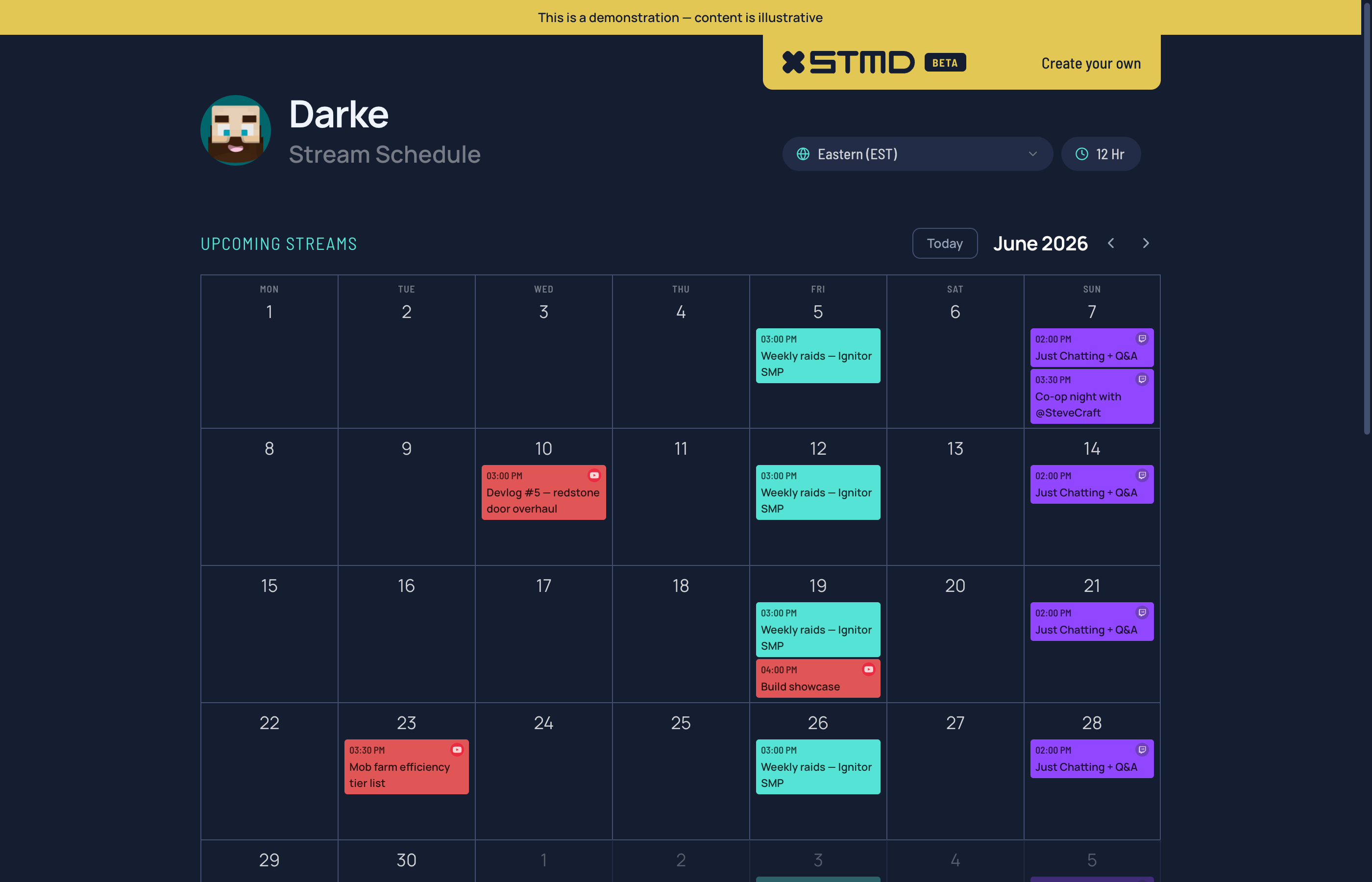
Prefer to watch? This demo covers the whole flow:
The fragmentation problem
The streaming world has been platform-fragmented for years and nobody has built a great viewer-facing solution. Each platform shows you the schedule for streams happening on that platform. None of them show you "when is this streamer live next, regardless of where."
For viewers, that means:
- A Twitch follower has no idea you're doing a YouTube premiere on Wednesday
- A YouTube subscriber doesn't see your scheduled Twitch streams at all
- A Kick fan has to manually check every platform
For you, that means:
- Three places to keep the schedule current
- No central record of what you've scheduled
- Promotion always feels piecemeal — you're pushing to one audience at a time
The fix is conceptually simple: pull the scheduled streams from every platform into one place, let you add streams that aren't on any platform yet, and publish the merged schedule at one URL you can share anywhere.
That's what StreamDay's personal schedule does. The rest of this guide walks through how to set it up, what to expect, and how to share it without it feeling like spam.
You'll need to sign up to StreamDay before undertaking these steps.
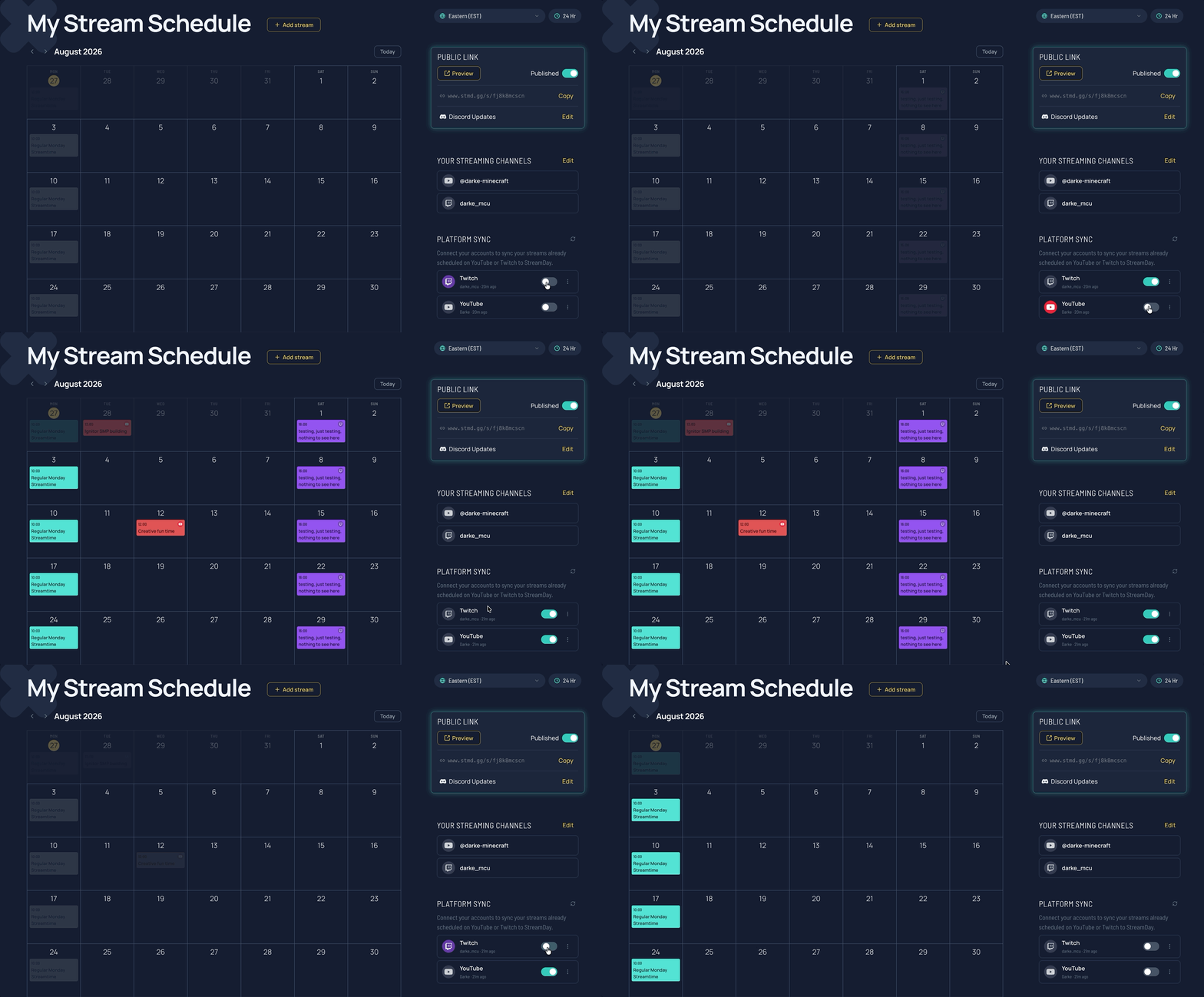
Step 1: Connect your platforms
The setup starts with connecting whichever platforms you stream on. StreamDay supports Twitch and YouTube for automatic sync; Kick is supported as a channel URL on your profile (so viewers see the badge and can click through) but doesn't currently have an API for schedule sync — you'll add Kick streams manually.
For each connection, you authorise StreamDay via the platform's OAuth flow. Twitch gives access to your scheduled segments (the "Schedule" feature in Twitch Creator Dashboard). YouTube gives access to your scheduled live broadcasts (the ones you set up in YouTube Studio with a "Go live later" status).
A few seconds after each connection, you'll see your scheduled streams from that platform start to populate your schedule. They show up tagged with the platform's brand color and a small platform icon — Twitch streams are purple, YouTube streams are red. That visual tagging is deliberate: at a glance, your viewers can see which streams will run on which platform without having to click through.
Step 2: Decide what counts as a stream
This is the question people skip and regret later.
Some streams are obvious: you scheduled them on Twitch or YouTube ahead of time, they sync automatically, you don't do anything. They're in.
Some streams aren't on any platform yet because you're still deciding. A vlog you're planning to record next Tuesday. A podcast appearance on someone else's show. A community event you're hosting on Discord that isn't technically a stream. Should those go on your schedule?
A practical rule: include anything your audience would want to know is coming up. Vlogs, podcast guest spots, community events, Discord office hours — if a regular viewer would feel let down to miss it, it belongs on the schedule. Tagging matters more than category. You can label a podcast appearance with a different color than your Twitch streams so viewers can tell them apart.
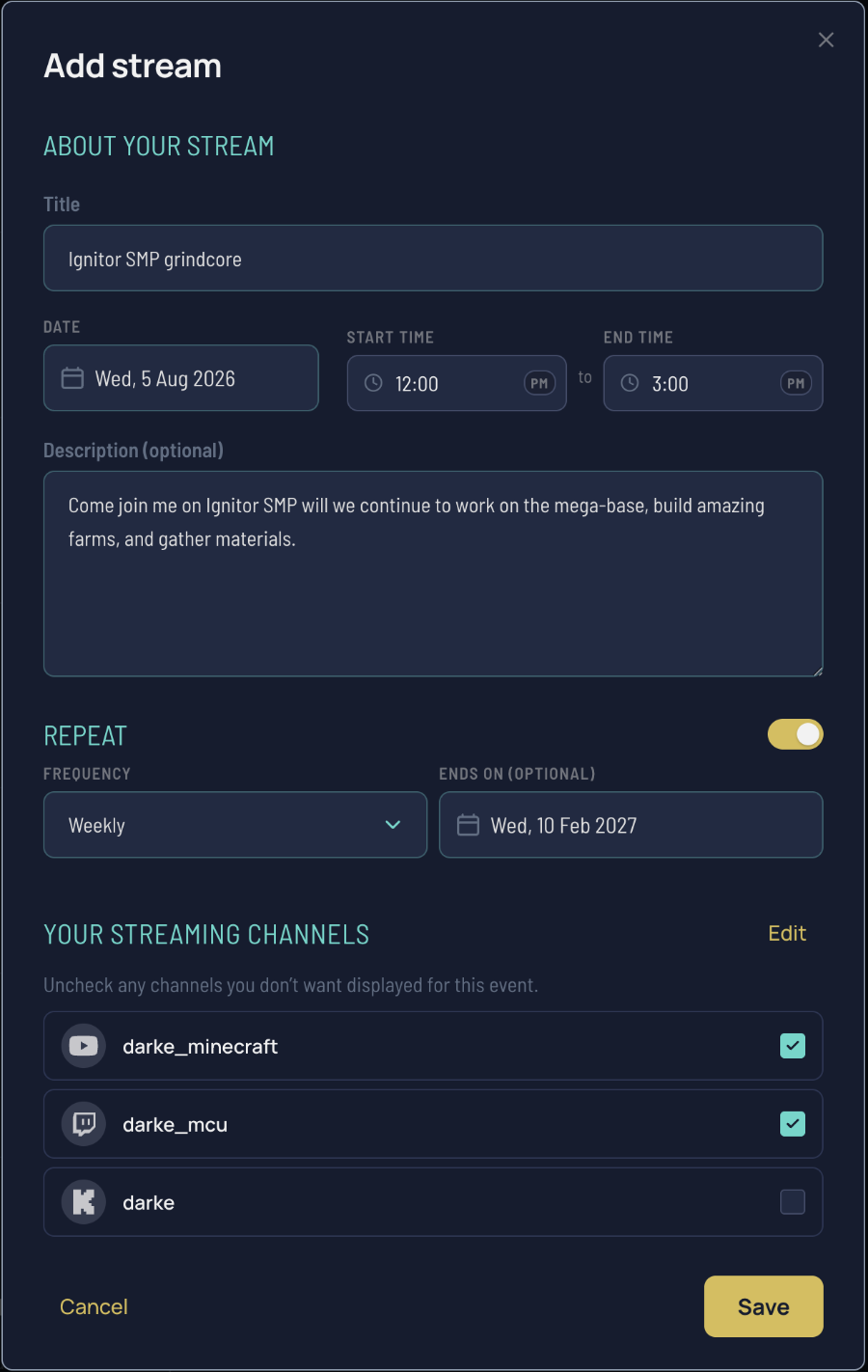
In StreamDay, you can add manual events via the schedule editor. They're not tied to any platform; you set the date, time, title, and color. They appear on your public page alongside the synced platform streams.
Step 3: Set up recurring streams once, not weekly
Most streamers' schedules have a backbone of recurring streams — "Monday raids", "Friday Q&A", "Sunday SMP" — and a sprinkling of one-offs around them.
If you're maintaining your schedule manually, you're either recreating those recurring streams every week (tedious) or treating them as a static panel ("I stream Mon/Wed/Fri 8pm") which falls apart the first time you miss one.
Recurring events solve this. Define "Monday raid stream, 8pm–11pm" once, with a weekly frequency, and it auto-populates onto your schedule indefinitely. If you miss one week, you can override that specific occurrence (mark it cancelled, or move it) without affecting the rest of the series.
Practical patterns we've seen work:
- One-off events for one-off content. Charity streams, premieres, collabs, vacation announcements.
- Recurring events for your standing slots. The weekly raid night, the biweekly community game, the monthly subathon prep.
- Exception overrides for the deviations. "This week's Friday Q&A is moved to Saturday." Edit the specific occurrence rather than changing the whole series.
The mental model is "default-on, with exceptions" rather than "rebuild every week." Once your recurring backbone is set up, you're only making small additive changes week to week.
Step 4: Design what viewers see
Your public schedule page lives at stmd.gg/s/{publicCode}. Viewers see:
- Your streamer name + avatar at the top
- Your platform channel badges (Twitch, YouTube, Kick) so they can follow you on any platform
- A calendar grid of your upcoming streams, colored by source platform
- An "up next" highlight card if your next stream is within 48 hours, or a "live now" card if you're actively streaming
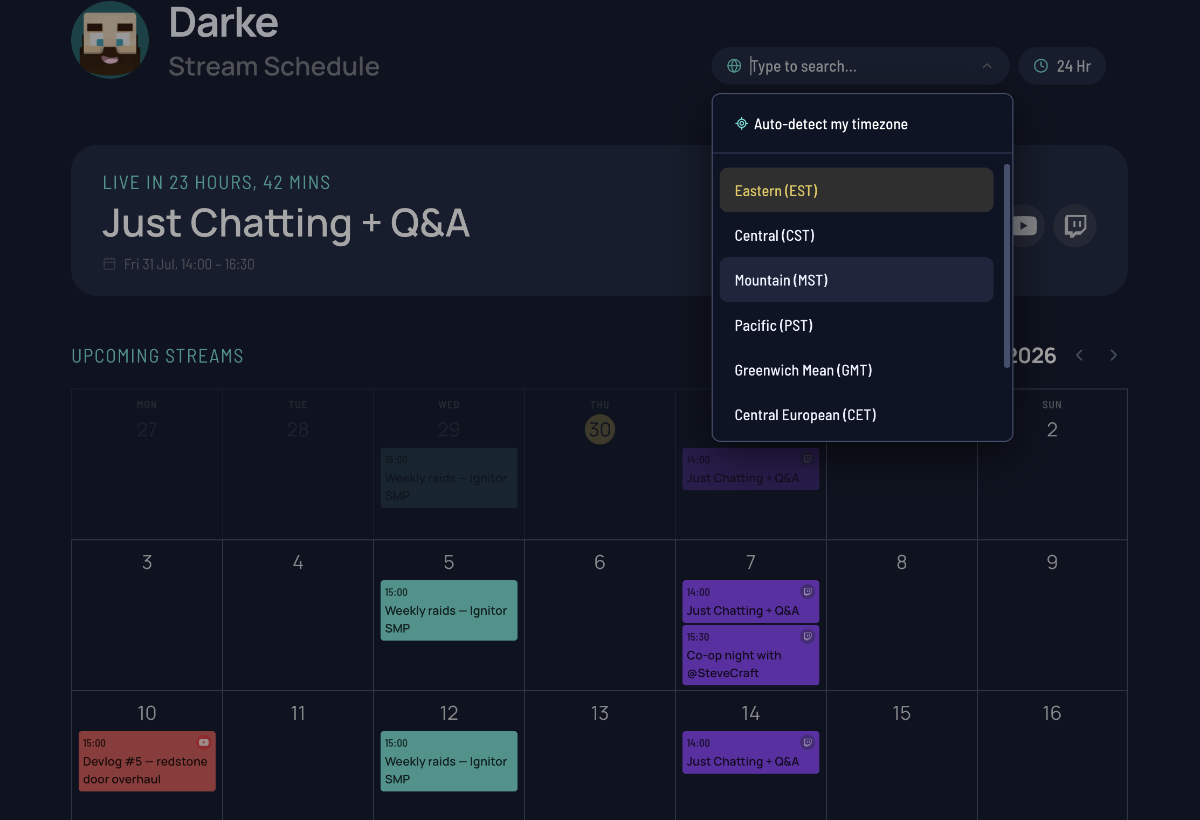
The calendar grid is the bit that does the heavy lifting. It shows the next ~30 days by default with month/week toggles, and every stream renders in the viewer's local timezone — not yours. A Tokyo-based viewer looking at a Pacific-time streamer's schedule sees Tokyo times. They never have to convert.
That timezone auto-conversion is the biggest single thing a single-source schedule gives you that a "Mon/Wed/Fri 8pm PT" panel never can. International audiences stop having to do math.
Step 5: Share the link without it feeling like spam
The link is published. Now you have to actually get viewers to use it.
Three placements that work:
Twitch panel. Replace your existing "Schedule" panel with one link to your StreamDay page. It loads instantly, it shows your full multi-platform schedule, and you stop maintaining the panel manually.
YouTube channel banner / about section. Add the URL to your channel banner overlay or About section. Same reason: one link, always current.
Discord pin in your community server. Pin the URL with a short note: "Full schedule across Twitch + YouTube — always current here." Viewers who want to plan their week save the link and come back to it.
Discord status that always shows. Add your Stream Schedule link to your Discord status, Those aren't clickable, but it puts it front and centre wghenever anyone clicks your profile.
Step 6: Keep the schedule alive
A dead schedule is worse than no schedule. A page that lists last month's streams as "upcoming" actively damages your credibility.
Three habits that keep a schedule healthy:
Update at most once a week. Spend 3 minutes on Sunday adding next week's one-offs, cancelling anything that won't happen, and confirming recurring streams. That's it.
Don't over-promise. If you might or might not stream on Saturday, don't put it on the schedule. Viewers calibrate to what's reliable. A schedule that's 90% accurate is worth far more than one that's 100% optimistic.
Sync changes from the platforms. If you move a Twitch stream from Saturday to Sunday in the Twitch dashboard, StreamDay picks that up at the next sync (which happens automatically). You don't need to update in two places. But if you cancel a stream by simply not going live, the schedule will still show it as planned — you need to delete or move it explicitly.
What this gives you over the alternatives
Versus a Twitch panel: multi-platform support, automatic timezone conversion, recurring events with exception overrides.
Versus a Linktree-style hub: a real schedule view, not just a link list — and your extra links sit underneath the calendar anyway, so the schedule page does both jobs at once.
Versus maintaining the schedule in three places: you stop forgetting to update one of them.
Versus a Google Calendar embed: it's actually styled to match your brand, it shows context (platform, color, description) for each stream, and the URL is something you can put on a panel without it looking janky.
If you want to see what a published schedule looks like in practice, our stream schedule demo is a worked example — a streamer with weekly recurring streams, Twitch + YouTube imports, and a couple of one-off events spread across three months. It's the same template every published schedule renders from.
What to do next
If you've been maintaining your schedule in multiple places, the smallest version of this change is:
- Create an account and connect at least one platform
- Let it sync for a few minutes, then look at your auto-populated schedule
- Add any manual events (vlogs, podcasts, off-platform stuff) you want to surface
- Set up your recurring streams once
- Publish, then replace your Twitch panel + Discord pin with the new URL
The free tier covers all the schedule building and previews. You pay only when you're ready to publish the page publicly. Until then, you can experiment freely.
The point isn't the tool — it's the principle. Wherever your viewers see "when does this streamer go live next?", they should see the same answer. If you take nothing else from this post, take that.