How to schedule streams on Twitch (and make your audience actually see them)
Twitch's scheduling tool is one of those features streamers know exists but don't use consistently. It's a few clicks tucked behind the Creator Dashboard, the streamer fills in two or three streams, and then never updates it again. The schedule sits there showing last month's "upcoming" streams, slowly losing credibility with anyone who notices.
Used properly, the Twitch schedule does two useful things: it helps the algorithm understand when your channel is reliably active, and it tells viewers when to show up. This guide walks through how to set it up, and — more importantly — how to make the schedule actually reach viewers who aren't already on your Twitch page.
Why the Twitch schedule matters
Two reasons, in order of importance.
Viewer habit-forming. A stream that happens at predictable times builds a "I'll catch them on Wednesday" audience. A stream that happens whenever the streamer feels like it builds a "I follow them but I never know when they're live" audience. The first is sustainable; the second isn't.
Algorithm signals. Twitch's recommendation systems prefer channels that go live on a consistent schedule over channels that don't. A scheduled stream that goes live as scheduled is a clean signal of reliability. Repeated scheduled streams that go live as planned compound that signal over time.
Neither of these is a magic boost. Both are background conditions for sustainable growth.
Where the schedule lives in Twitch
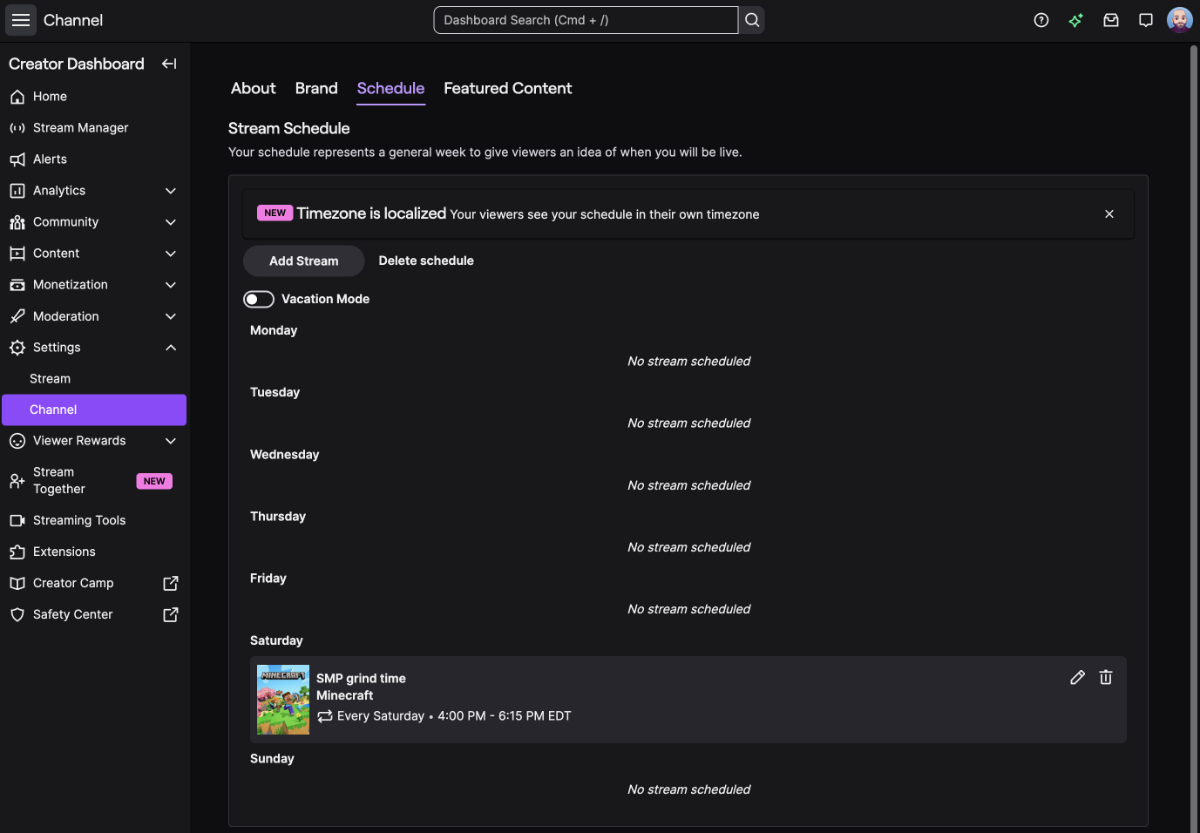
The schedule is in your Twitch Creator Dashboard:
- Go to
dashboard.twitch.tv - Sidebar → Schedule (under Content or Stream Manager, depending on the dashboard version)
You'll see a calendar grid (default: week view) with your existing scheduled streams. Plus an "Add a scheduled stream" button.
If you can't find it, the direct URL is dashboard.twitch.tv/u/{your-username}/content/schedule.
Setting up a one-off scheduled stream
For a one-time stream (a launch event, a guest stream, anything that doesn't repeat):
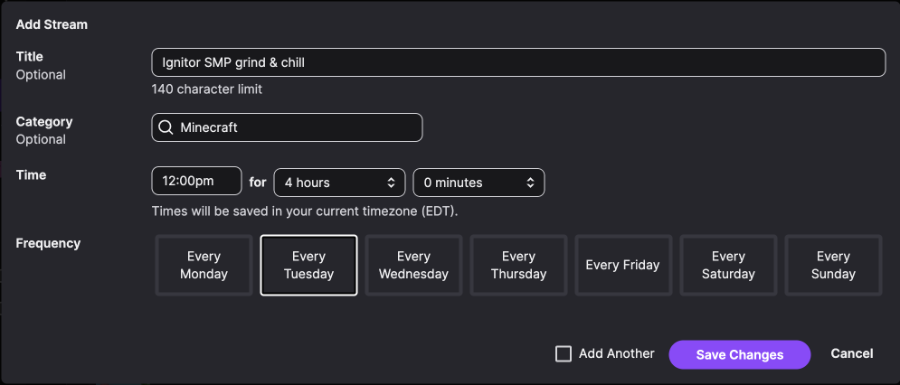
- Click Add stream (or Create new depending on Twitch's UI version)
- Title: What you're streaming. Be specific. "Speedrun attempts — Hollow Knight any%" beats "Hollow Knight."
- Category: Pick from Twitch's category list. The category determines which directory your stream appears in.
- Tags: Twitch supports up to 10 tags per stream. Use a mix of game-specific tags and broader tags (e.g. for a Hollow Knight stream: "HollowKnight," "Speedrun," "MetroidVania," "English").
- Start date and time: Set in your local timezone. Twitch handles the conversion for viewers.
- Duration: Estimate. You can run over or end early — this isn't binding.
Save. The stream appears on your channel's schedule panel.
Announcing a one-off stream in Discord or on social instead? Our free stream timezone converter turns your go-live time into every region your audience is in, so nobody turns up an hour late.
Setting up recurring scheduled streams
This is where the value compounds. A weekly Tuesday stream set up once shows up on your schedule every week without you doing anything.
- Add stream as above
- Tick Repeats
- Choose the recurrence pattern: weekly, biweekly, etc.
- End date (optional): leave blank for "never ends," or set a specific date if it's a limited series
- Save
The recurring stream appears on every future occurrence. If you need to cancel a single week, edit that specific occurrence rather than the whole series.
A common pattern: set up your "anchor" streams as recurring (Mon/Wed/Fri 8pm, for example), and add one-off streams on top of them as occasional bonus content.
The pitfall: viewers don't actually see your Twitch schedule
Here's the thing nobody tells you about Twitch's scheduling feature: almost no viewers ever see it.
Your Twitch channel page has a "Schedule" panel, but viewers have to visit your channel to see it. They have to scroll past the video header, past your panels, past your About section. Most viewers don't.
The places Twitch schedule data actually surfaces to viewers:
- The Creator Dashboard's schedule view (which only you and viewers who explicitly visit your channel see)
- Twitch's mobile app's "Following" page sometimes shows upcoming streams from channels a viewer follows — but the surfacing is inconsistent
- Email notifications for scheduled streams, only for viewers who've opted in to that specific channel's notifications
That's it. Your Twitch follower who follows you on Twitter, lurks in your Discord, watches you when they happen to catch you live — they probably never see your Twitch schedule.
The fix is to put the schedule somewhere viewers actually look. Which, for most streamers, is anywhere except their Twitch channel page.
Step 1: Share the schedule on your other platforms
The lowest-effort improvement: copy the schedule into the places viewers actually see.
- Discord pinned message. Pin a "schedule" post in your server's announcements channel. Update it weekly.
- Twitter / X bio. Your bio is one of the highest-visibility surfaces you control. A line like "Live Mon/Wed/Fri 8pm ET" sets expectations.
- YouTube channel banner. If you cross-post to YouTube, the channel banner has space for your schedule.
The problem with all of these: you have to maintain them manually. The Twitch schedule changes, you update Discord, you forget Twitter, and now you have three different versions of "when does this streamer go live."
Step 2: Use a unified schedule that auto-syncs from Twitch
The better solution: a single schedule that pulls your Twitch streams automatically, lets you add streams from other platforms, and gives you one URL to share everywhere.
Here's what that looks like in practice:
We built StreamDay for this. The flow:
- Sign up at
streamday.gg - Connect your Twitch account via OAuth (one-time)
- Your scheduled Twitch streams auto-import into StreamDay within a few minutes
- Add any manual events (vlogs, podcasts, off-Twitch streams) on top
- Publish to a single URL:
streamday.gg/s/{your-code}
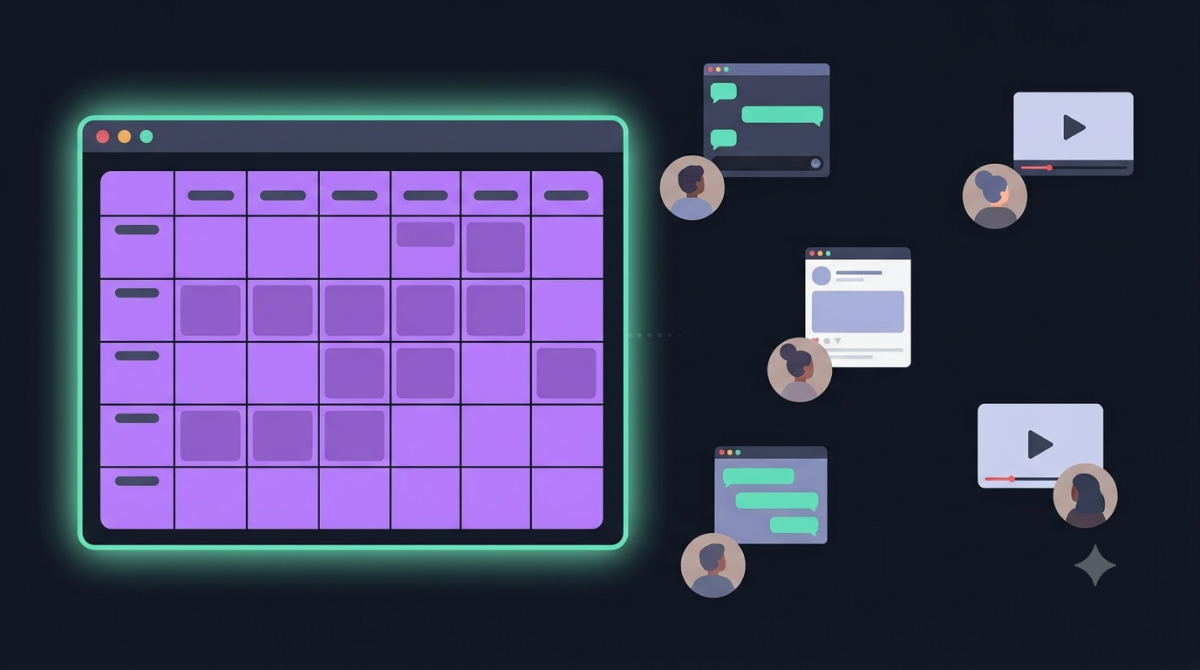
Viewers see a calendar grid of all your upcoming streams, with each stream tagged by source platform (Twitch / YouTube / Kick) and rendered in their local timezone — not yours. A Tokyo viewer following a Pacific streamer sees Tokyo times.
The URL goes in your Twitch panels, Discord pin, Twitter bio, YouTube channel banner — everywhere you'd have manually updated separately. When your Twitch schedule changes, the StreamDay schedule updates within a few minutes, and every link to it picks up the new version automatically.
You can see what a published schedule looks like on our stream schedule demo — a streamer with weekly recurring streams, Twitch and YouTube imports, and a handful of one-off events.
Why one URL across platforms matters
This is the bit that's worth dwelling on.
If you only stream on Twitch, the unified-schedule benefit is mostly the "viewers see it in their timezone" and the "I can replace my Twitch panel with one link" upgrades. Real but incremental.
If you stream on Twitch and YouTube (or Kick, or anywhere else), the benefit multiplies. Your Twitch audience has no way to discover your YouTube streams — Twitch doesn't surface other platforms. Your YouTube subscribers don't see your Twitch schedule. A unified URL gives every viewer a single view of your full activity, regardless of which platform brought them to you.
This is the modern reality of streaming: most established streamers broadcast on more than one platform. The viewer-facing tools haven't caught up with this. A unified schedule is the gap-filler.
Step 3: Promote the schedule, not individual streams
Once the unified schedule is in place, your promotion changes.
Before: "I'm going live in 30 minutes, come watch!" (every stream)
After: "I stream Mon/Wed/Fri 8pm ET — schedule's at streamday.gg/s/yourname" (every couple of weeks, on a few different platforms)
The first builds urgency for each individual stream. The second builds habits with your audience. Both have a place, but the second is what creates the regular-viewer base that's the difference between a hobby and a sustainable creator career.
In summary
The Twitch scheduling tool is genuinely useful for algorithm signals and viewer habit-forming — but the schedule rarely reaches viewers organically because Twitch surfaces it poorly.
The pattern that works:
- Set up your scheduled streams in Twitch (the algorithm reads them)
- Sync that schedule to a unified URL (so viewers across all platforms can see it)
- Replace your manual "schedule" updates everywhere else with a link to the unified URL
- Promote the URL in places viewers already look (Discord, Twitter bio, YouTube banner)
If you want to try the unified approach, create a StreamDay account. The free tier covers connecting platforms and previewing your schedule; you only pay when you publish for real. Most streamers can have a working schedule live within an hour of signing up.