How to schedule live streams on YouTube (and get them in front of more viewers)
YouTube's live scheduling is more capable than Twitch's in two important ways: scheduled streams trigger notifications to subscribers ahead of time, and the algorithm has more places to surface upcoming streams (Subscribe feed, notifications bell, upcoming-broadcasts list on your channel page).
It's also slightly more complex to set up correctly, partly because YouTube has two different "scheduled live event" types that look similar but behave differently. This guide walks through what to schedule, how to schedule it, and how to make sure your audience actually hears about it.
Why schedule on YouTube
Three reasons:
Subscriber notifications. When a YouTube subscriber has notifications turned on for your channel and you schedule a live stream, YouTube emails / pushes them ahead of time. This is a high-conversion channel — viewers who get the notification often actually show up.
The "Upcoming live streams" surface. Your channel page shows scheduled upcoming streams in a dedicated section. New visitors to your channel see what's coming, which is a much stronger conversion signal than "their last stream was three days ago."
SEO and discovery. Scheduled streams generate a YouTube URL the moment you schedule them. That URL is indexed by Google. If someone searches your channel name + "live" or your topic, the scheduled stream can appear in search results before it's even gone live.
Compared to Twitch, where the schedule rarely reaches non-followers, YouTube schedules generate organic visibility.
Live stream vs Premiere — pick the right one
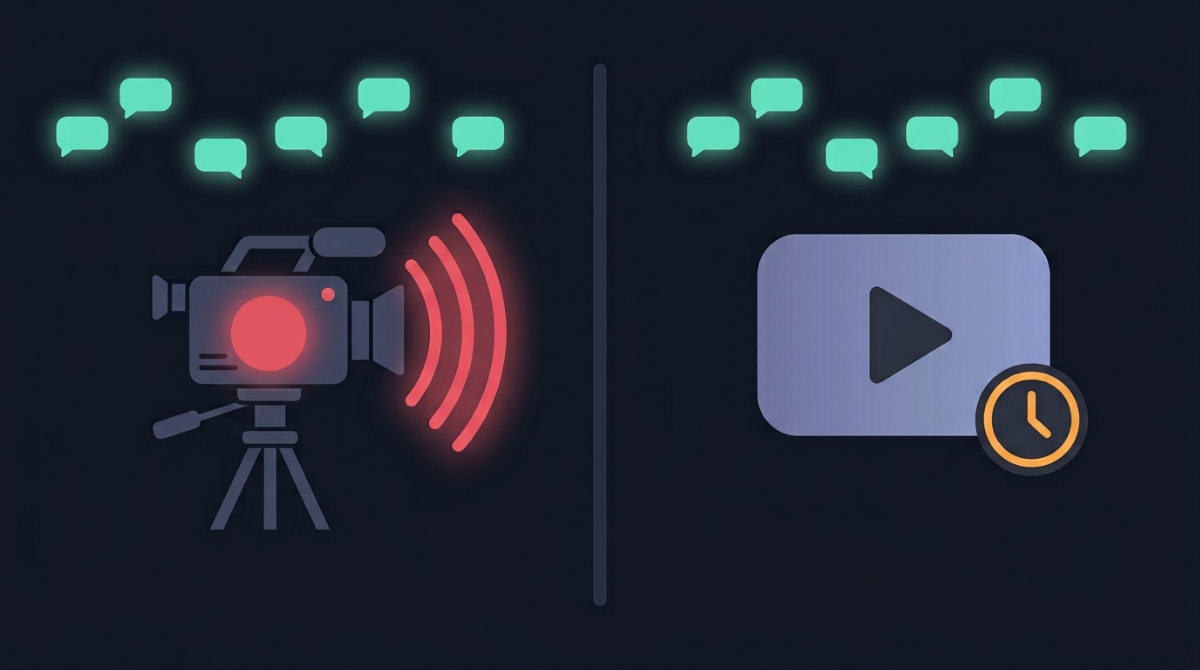
YouTube has two scheduled-broadcast types and the difference matters:
Live Stream: A real-time broadcast. You'll be live, chatting, reacting in real time. Use this for actual live content.
Premiere: A pre-recorded video that "premieres" at a scheduled time. The video plays for everyone simultaneously while a chat runs alongside it. The streamer typically chats but isn't broadcasting live. Use this for music videos, content drops, anything pre-produced.
If you're going to be sitting at your stream setup and actually broadcasting in real time, you want Live Stream. Premieres are great but they're a different format with different expectations.
How to schedule a live stream
- Go to studio.youtube.com
- Top-right: click the Create button (camera icon)
- Select Go live
- In the Live Control Room: top of the page, click the Manage tab (vs the default "Stream" tab)
- Click Schedule stream (top right)
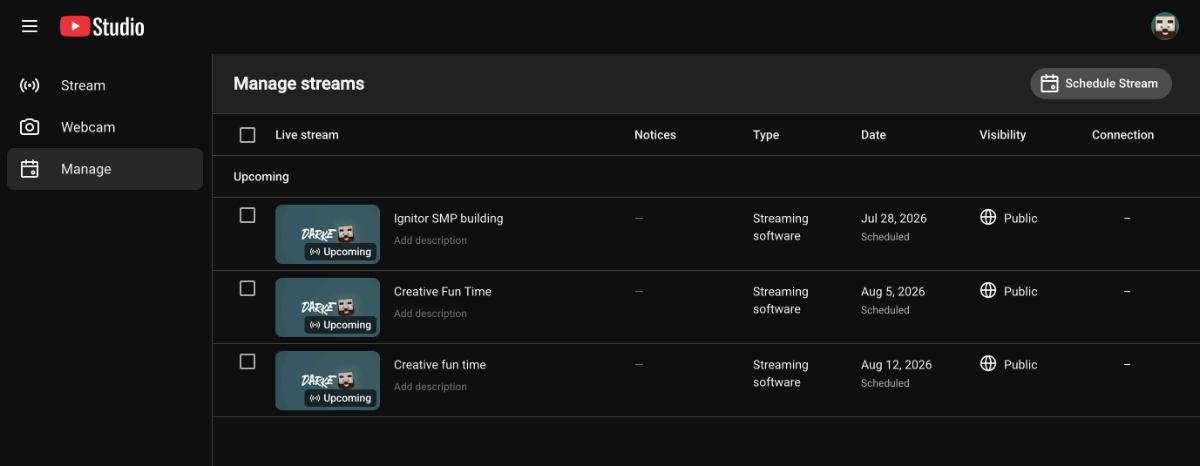
You'll see a form with the following fields:
Title
Be specific. "Speedrun attempts — Hollow Knight any% — Hardware Speedrunning World Cup qualifier" is far more searchable than "Hollow Knight stream."
YouTube heavily indexes the title for both search and the recommendation system. Front-load the keywords that someone looking for this content would actually type.
Description
Short paragraph about what the stream will cover. This is also indexed by search.
Two things worth including in every scheduled stream's description:
- A link back to your channel and other socials
- A link to your stream schedule (more on this below) so viewers can see what else you've got coming up
Thumbnail
YouTube renders the thumbnail of a scheduled stream in the Upcoming-streams panel on your channel and in subscriber notifications. A good thumbnail dramatically lifts both browse-conversion and notification-open rates.
Spec: 1280×720, under 2 MB, JPG/PNG/WEBP. Use clear large text, a face/character, and high contrast. The thumbnail will be displayed at much smaller sizes in some surfaces, so legibility at thumbnail size matters more than full-resolution detail.
Scheduled date and time
In your local timezone. YouTube converts to each viewer's local timezone automatically in the UI.
Category
Pick the one that matches your content. This affects which audience surfaces the stream gets recommended into.
Audience: "Made for kids" or not
Almost certainly not. The "made for kids" setting disables a lot of features (no chat, no notifications, no recommendations) and is intended specifically for content directed at children under 13.
Visibility
Public, Unlisted, or Private. For a real audience-facing scheduled stream, choose Public.
Latency
YouTube offers "Normal latency," "Low latency," and "Ultra-low latency." Tradeoffs:
- Normal: Highest stability, best playback quality, 15–60 second delay
- Low: ~5–10 second delay, slightly less stable
- Ultra-low: 1–3 second delay, designed for chat-driven streams (gameplay, chess)
For most streams, "Low" is the sweet spot — close enough to real-time that chat works, stable enough to not glitch on shaky connections. Use Ultra-low only if you specifically need near-realtime interactivity.
Other settings
- DVR: Allow viewers to rewind during the stream. Keep on unless you have a reason not to.
- Promotions / monetization: Set if you're monetized.
- Enable embed: Lets your stream be embedded on other sites. Useful — keep on.
Click Done when finished. The scheduled stream gets a permanent YouTube URL that's live immediately, even though the actual broadcast won't happen until the scheduled time.
What viewers see between scheduling and going live
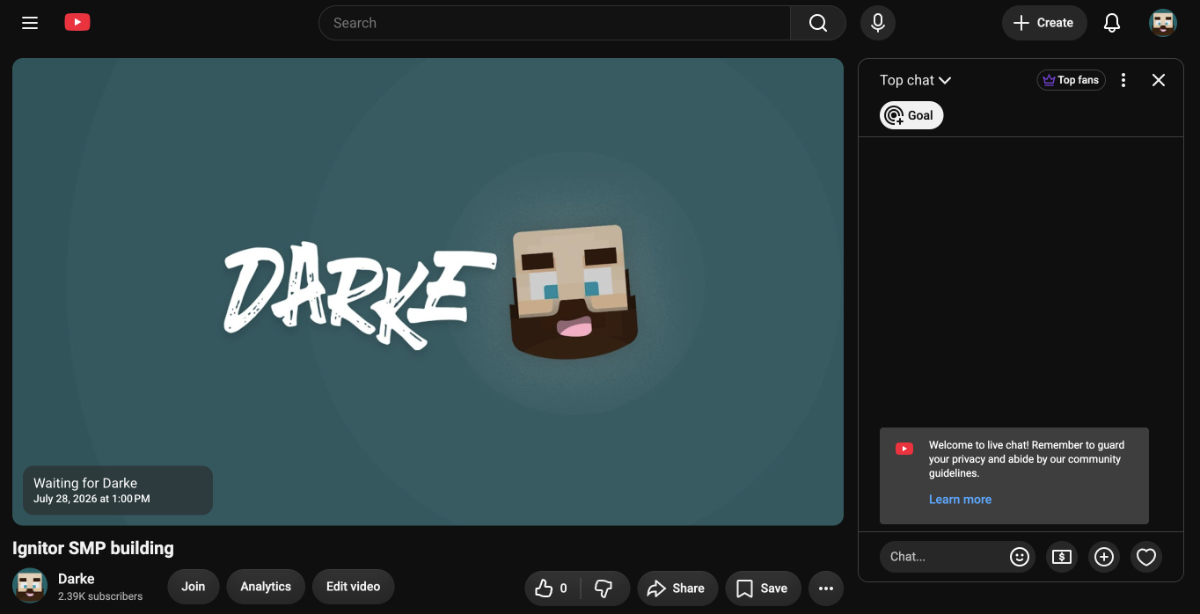
The scheduled-stream page goes live the moment you schedule. Visitors see a "Scheduled for [date/time]" countdown, a "Notify me" button (which subscribes them to a notification when you go live), and any chat that's enabled.
This is a useful URL to share before the stream happens. Drop the link in your Discord with "Going live Thursday — set a reminder." Tweet it the day before. Visitors clicking through hit the actual stream page, can set a reminder, and YouTube notifies them at go-live time.
How to actually go live at the scheduled time
When the scheduled time arrives:
- Open OBS (or your encoder)
- In YouTube Studio → Manage → click your scheduled stream
- Click the stream → Stream tab → copy the stream key
- Paste the stream key into OBS (Settings → Stream → Stream Key)
- Start streaming in OBS
- Wait for YouTube to detect the stream (usually ~10–30 seconds)
- Click Go Live in YouTube Studio when you're ready
The scheduled URL stays the same — viewers who saw the "Scheduled" page now see your live stream automatically.
A subtle but important detail: streaming to YouTube doesn't automatically start broadcasting publicly. There's a manual "Go Live" click after YouTube detects the encoder feed. This lets you check that everything's working (audio levels, video framing) before viewers see anything.
The same problem as Twitch: viewers don't always find your schedule
YouTube's notification system is good — but it only reaches subscribers who've opted into bell notifications for your channel. That's a minority of even your existing subscribers, and zero of your viewers from other platforms.
For everyone else, your scheduled-streams list is visible only on your YouTube channel page, in the "Upcoming live streams" section. Viewers have to actively visit your channel.
If you also stream on Twitch or Kick, YouTube is even less surfacing-able — those streams aren't visible anywhere on YouTube at all.
The unified-schedule solution
The pattern that works across platforms: pull your scheduled YouTube streams (and your Twitch streams, and any other platforms) into one place, publish at a single URL, and share that URL everywhere.
Here's what that looks like in practice:
We built StreamDay for exactly this. The flow:
- Sign up at
streamday.gg - Connect your YouTube account via OAuth
- Your scheduled YouTube broadcasts auto-import within a few minutes
- Optionally also connect Twitch if you stream there too — those imports show up alongside YouTube ones, distinguishable by platform color
- Add any manual events (off-platform content, podcasts, vlogs) on top
- Publish to a single URL:
streamday.gg/s/{your-code}
The published page shows your full schedule with each stream tagged by source platform. YouTube streams render in red, Twitch in purple, Kick in green, manual events in mint. Viewers see one calendar, in their own timezone, with everything you've got coming up.
See our stream schedule demo for what a real published page looks like.
Where to share the unified URL
Once you've got a single URL covering all your scheduled streams, the placement options open up:
- YouTube channel banner. Add the URL to your banner's clickable area (Customise channel → Channel customisation → Basic info → Add link).
- About section. Put the URL at the top of your channel's About text. "Full schedule across YouTube + Twitch always here:" reads naturally.
- Stream description. Every scheduled stream's description should link back to the full schedule.
- Discord pin. Replace your manually-updated "schedule" pin with one link.
- Community post. Once a month, post your schedule URL as a Community tab post.
The Community tab one is underused. A "monthly schedule" community post that includes a link to your unified schedule gets shown to your subscribers in their YouTube feed, has high engagement, and serves as a recurring reminder of where your full schedule lives.
Why this matters more for YouTube streamers specifically
YouTube subscribers tend to be more habit-driven than Twitch followers. The recommendation algorithm prefers regular activity. The notification system rewards consistency.
A unified schedule plays into all of this:
- Your subscribers see a coherent "this streamer goes live regularly, here's when" signal
- You stop forgetting to update one of your scheduling surfaces
- Cross-platform viewers (people who follow you on multiple platforms) see your full activity instead of a fragmented view
This isn't a magic boost — the underlying content still has to be worth showing up for. But it removes the "I didn't know they were live" friction that costs most streamers more views than they realise.
In summary
- Schedule your live streams in YouTube Studio — title, description, thumbnail all matter for both search and notification conversion
- Use "Low" latency unless you specifically need realtime interactivity
- Share the scheduled URL before the broadcast — viewers can set reminders
- Set up a unified schedule that pulls YouTube + Twitch + manual events into one URL
- Replace your scattered "schedule" updates with the unified URL everywhere your audience already looks
If you want to set up the unified schedule, create a StreamDay account. The free tier covers everything up to publishing your page; you only pay when you flip the switch to make it public.